Showing posts with label SEO. Show all posts

How To Show Post Title Before Blog Title In Blogger


How To Show Post Title Before Blog Title In Blogger
You don’t have to do a Herculean task to make your blog title appear first. I am going to walk you through the exact process so that, you will not lose it in the midway.
Go to your blogger dashboard.
Click on Template.
Then, click the Edit HTML button.


Click to put a check in the Expand Widget Template box.
Now press Ctrl+ F and search for the following code in your template’s code:


<data:blog.pageTitle/>


Once you find it, replace the same with the following.


<b:if cond=’data:blog.pageType == “item”‘>

<title><data:blog.pageName/> | <data:blog.title/></title>

<b:else/>

<title><data:blog.pageTitle/></title>

</b:if>


Finally click Save Template to save the changes.
That’s it!

Here is how a blog post will like in search results after making this change:


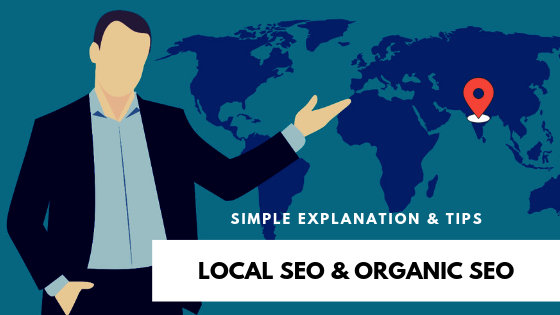
Local SEO & Organic SEO


Local SEO & Organic SEO | Simple Explanation & Tips

Search Engine Optimization or SEO, I guess many you have heard these terms if you have been around the digital marketing atmosphere during the past few years.
Going a little deep into the term SEO, you might even be familiar with the term’s Local SEO and Organic SEO.

Local SEO & Organic SEO | Simple Explanation & Tips

What is Organic SEO?
  • Major search engines like Google, Yahoo, and Bing have a unique algorithm that identifies the location of the user and provides the most accurate results based on their search term.
  • Organic SEO also referred to as National SEO provides search results in multiple areas and location.
  • Natural search results that are displayed on the search engine for generalized search terms or keywords are is known as Organic SEO.
For example, if you want to rank high for the search term “Digital Marketing Company”, you will need to include that word in high-quality content on multiple online platforms and websites.
In this case, whenever a user searches for “Digital Marketing Company”, your web page will be displayed in top search results of search engines.
Your targeted keyword or search term can either be a single word or a “long-tail” word based on your intent.
Search engines use hundreds of factors to rank and index websites in search results, including keywords, inbound and outbound links, and even grammar, to name a few.
What is Local SEO?
  • Local SEO is similar to Organic SEO, but it’s more concerned about geographic location specific sense.
  • A lot of small business owners and local businesses use local SEO services in order to advertise locally and build their brand awareness.
  • The competition for Local SEO is not as tough as Organic SEO. But still, it needs time, efforts and research to get it right.
If a user searches for a particular service or industry along with location, the search engine knows and understands that particular search term is for local intent. Thus, the search engine displays the results accordingly to the search term.

Local Search Example

For example, if a user searches for “Digital Marketing Company in Surat”, or “Digital Marketing Company Near Me”, the search engine will optimize the search results to that specific area.
These types of search term guide the search engine that the user is looking for something within a specific geographic area instead of general.
And even, if the user just searches for “Digital Marketing Company”, the search engine will display local search result also, as it will assume that the user is looking for a local digital marketing company.
So, what’s the main difference between Local SEO and Organic SEO?
  • The main difference between Local SEO and Organic SEO is the geographical component.
  • Local SEO targets geographic keywords while organic SEO addresses terms of more general keywords
  • Local SEO can be cheaper because it only competes with other local businesses and not with nationalizing businesses.
  • Local SEO is ideal for small local businesses such as restaurants, retail stores, beauty salons, lawyers, clinics, etc.
What should you focus on? Local SEO or Organic SEO?

Image Credit: Pixabay

Well, this is not a hard decision, it totally depends on your business and service.
  • If you have a local business like a fast food restaurant in a specific location, you will need to focus more on Local SEO.
  • Though, if you want your business to get ranked high on search engines for certain search terms not limited to a specific location, you may opt for Organic SEO services.
  • If you are more focused on building a brand identity for your business, then you should invest your time more in developing your organic reach.
  • Even, local businesses can take the benefit of organic search to expand their brand identity.
Take a look at some useful tips to improve your local SEO


  • Claim Your Google My Business Listings
When you create your Google My Business account, you can make sure your name, address, and phone number are correct. You must also include a brief but informative description of the company, a link to your website and opening hours, etc.
  • Add Location Pages to Your Website
By having a specific landing page for each of your business sites, search engines can easily locate your listing and provide the appropriate location for the user.
  • Maintain NAP Consistency
One of the best things you can do to improve local SEO ranking is to list NAP addresses (name, address, and phone number) in professional directories such as those available on Google and other search engines.
  • Get Reviews
Reviews are an important factor in local rankings and also help your ad stand out. If you manage to convince your satisfied customers to leave you a Google review to thank you for your positive experience, it can go far beyond any other local SEO tactic.
  • Social Media Platforms
Social media platforms are free. So, this is not new, it can be a great way to stay in front of your audience. Google and other search engines will search and extract search results from your social platforms, such as Facebook profiles and page reviews, your company’s LinkedIn or YouTube profile, and even your Twitter account and recent tweets.
Conclusion
In this digital era, SEO is not limited to market activities. It has the potential to connect consumers and businesses around the world.
Remember that even if SEO is an optimization for search engines, that’s what helps consumers find your business.
While you want to make sure that search engines know your business and your website, it’s important to think of potential customers who are looking for your business.
Do not just optimize for Google to know what you’re doing. Make sure users can find all the information they need about your business, such as exact location, schedules, services or products, etc.

How To Add One Click Sitemaps Submitter to blogger


With this tool your visitors can directly notify Google, Yahoo!, Ask.com and Moreover.com about their new or updated sitemaps file.
1.Login to your dashboard--> layout- ->Page Elements
2.Click on 'Add a Gadget' on the sidebar.
3.Select 'HTML/Javascript' and add the code given below and click save.
<script src="http://www.mypagerank.net/services/sn/servicesn_js.php"></script>
Now you are done.It will look like this.

How To Add Indexed Pages Checker to blogger

1. Login to your dashboard--> layout- ->Page Elements
2. Click on 'Add a Gadget' on the sidebar.
3. Select 'HTML/Javascript' and add the code given below and click save.


<form method ='post' action = 'http://www.seocompany.ca/tool/indexed-pages.php'>
<textarea name ='urls' cols=50 rows = 10></textarea><p>
<input type = 'submit' name = 'submit' value ='Check Now!'>
</form>


Now you are done.Look at the picture below.
 How To Add Indexed Pages Checker to blogger
 How To Add Indexed Pages Checker to blogger

How To Get Know When Googlebot Last Visit

How To Get Know When Googlebot Last Visit


Googlebot is the web crawling bot program (spider) used by Google, which discovers new and updated documents from the web to build a searchable index for the Google search engine.
If you want to display when the last time google bot visit to your site , add your site/blog url going to www.gbotvisit.com and click on "Check Google Bot last visit" button.

Now copy and paste the code provided by gbotvisit.com into your blog/website.
If you are using Blogger, add it to "HTML/JavaScript" box. Final result will look like this.
This image is updated every day.

How To Add Beautiful Subscribe Widget to Blogger

How To Add Beautiful Subscribe Widget to Blogger


Do you like to add a good looking social subscribe widget to your blog? Then simply follow the steps given below.
1.Login to your blogger account and go to "Edit HTML".
2.Scroll down to where you see </head> tag .
3.Copy below code and paste it just before the </head> tag.
<style type='text/css'>
@import url(https://fonts.googleapis.com/css?family=Lora:400,700);

#subscribe-btt {
margin: 0;
padding: 10px;
background: #eee;
border: 3px solid #e8e8e8;
}

#subscribe-btt:hover {
background: #e9e9e9;
border: 3px solid #ddd;
}

#subscribe-btt h2.mysocialurl {
border: 0;
margin: 0 0 8px 0;
padding: 0 0 0 56px;
height: 48px;
line-height: 48px;
font-size: 14px;
font-style: normal;
font-weight: bold;
font-family: Lora;
}

#subscribe-btt h2.my-twitter {
background: url(https://blogger.googleusercontent.com/img/b/R29vZ2xl/AVvXsEgLduMTorB3Jia3Ualt__zrKS-naS-pVp8pUUm42nk-d7c88z0CNnZ_PMT2qcOzNQEFW-l5MiCvPCH8HIzuHQskKJ6hRezyS7zHFAhT4qmcAtW4VYhpfEbCCxLb1ODM8FpFfYJgvd0RDzct/s1600/twitter.png) no-repeat top left;
}

#subscribe-btt h2.my-facebook {
background: url(https://blogger.googleusercontent.com/img/b/R29vZ2xl/AVvXsEibJhkqR749C0mf-_24VaCECQAZgwmx8bmPBdLHrWoTLaTdpBBJyh9z8hfqswQrhYkTGvB5TooHLDH1ua3DPDoOMNEEZHmrVO44TEf8ivisdNBND-JzqlXNfWgSlTDuKPA2WVeXYk2JAb4h/s1600/facebook.png) no-repeat top left;
}

#subscribe-btt h2.my-googleplus {
background: url(https://blogger.googleusercontent.com/img/b/R29vZ2xl/AVvXsEitA57Z3EWJa4vke9jB0we2YgJyOmMtBfxjpteF9zxq6904eCtEzir6QQEJzCzlOHiIaq3IpmP6uX-yABgHvPkve6dtnjLuy-47KkkKOhIXRpAT-_Yv1oPoJBk79dpTu3oB2TsjBMK5INrj/s1600/google_plus.png) no-repeat top left;
}

#subscribe-btt h2.my-pinterest {
background: url(https://blogger.googleusercontent.com/img/b/R29vZ2xl/AVvXsEioSChz2SA_Y0RIiyXSv0BbPpz7i75Ife4EiY7oKtqDQRn4zBwyqVd7DhVqNVmo-Jaga7Q4u5eQKFT7jQZsvpKp3LyZUtab7eb0pQCu25DguNxrovvP9CH6ZckN3RiT_9XjEqY0F7FNejaY/s1600/pinterest.png) no-repeat top left;
}

#subscribe-btt h2.my-instagram {
background: url(https://blogger.googleusercontent.com/img/b/R29vZ2xl/AVvXsEhkWpB5-nrptnkOGM1SkLsqIae1kTjJlbJMlNrCXk5A5qMSAIDEpHZWJ6V8ve-TuSNKzJfjr3xqdSDC8N0tt21Wjwba9SWRmC_MiiKgS79n4pclU9DZBYOqguebV5SuSFkmXcYiAky7rise/s1600/instagram.png) no-repeat top left;
}

#subscribe-btt h2.my-linkedin {
background: url(https://blogger.googleusercontent.com/img/b/R29vZ2xl/AVvXsEg-0UGu5kex_bso-dycdMmaxPvH8AwgbBN0M6PQ2dpNSu9JsvVtMht7PFtnazedl_H2qt0LqyH9FBH4RJjqi-Oeel-UzT8sBaUNHxVmMYhHojzM0abwS5fqjONdfGbTesjZj4KKAv0auLnu/s1600/linkedin.png) no-repeat top left;
}

#subscribe-btt h2.my-youtube {
background: url(https://blogger.googleusercontent.com/img/b/R29vZ2xl/AVvXsEgheAM37nXYHhQfUL4a0hGxBc3JABiBr9Ji77m4Scdgbo-u8Xus0UojXp77hnPobIpxF58CR1fq8znYMZ7rEdQuyvl54aYC-XcHZGwJe5bvkAn1m-7rki39AEGBUxFEs9w_SY7snjYoPqqw/s1600/youtube.png) no-repeat top left;
}

#subscribe-btt h2.my-rss {
background: url(https://blogger.googleusercontent.com/img/b/R29vZ2xl/AVvXsEiyn5neeUinkk66ROlrYBQjHQu3mhK-4ccKpf1fcGrC5aPQ0zxBF4sT_7oAO-UzL6NinlSB2mCV6GrhrNZtADqUvGaoU2MVM8cJIwTSVsY1Yw4PRRpr_l8SGHls-QIiVjlOT_0ZsmF_CC6P/s1600/rss.png) no-repeat top left;
}

#subscribe-btt h2.my-email {
background: url(https://blogger.googleusercontent.com/img/b/R29vZ2xl/AVvXsEjy3Zs64aaZijh9OxADbqwt1B9JYGdBmsbrgi35soykwa2O1_ryReiKQoAo6gJM2XETN_LhvzBDGhjbP-MNCXSuEuGhsmyxMH2TnWKJA72jYeW6_bOC3bpt69s_-QJjDyQGxlnbqpKS9HQS/s1600/mail.png) no-repeat top left;
}

#subscribe-btt .mysocialurl a {
color: #252e28;
text-decoration: none;
}

#subscribe-btt .mysocialurl a:hover {
color: #000000;
text-decoration: underline;
}
</style>
4.Now go to "Layout" and click on "Add a Gadget".
5.Select "HTML/JavaScript" and add the code given below and click "Save".
<div id="subscribe-btt">

<h2 class="mysocialurl my-twitter"><a href="YOUR-TWITTER-URL">FOLLOW ME ON TWITTER</a></h2>

<h2 class="mysocialurl my-facebook"><a href="YOUR-FACEBOOK-URL">FOLLOW ME ON FACEBOOK</a></h2>

<h2 class="mysocialurl my-googleplus"><a href="YOUR-GOOGLE-PLUS-URL">FOLLOW ME ON GOOGLE PLUS</a></h2>

<h2 class="mysocialurl my-pinterest"><a href="YOUR-PINTEREST-URL">FOLLOW ME ON PINTEREST</a></h2>

<h2 class="mysocialurl my-instagram"><a href="YOUR-INSTAGRAM-URL">FOLLOW ME ON INSTAGRAM</a></h2>

<h2 class="mysocialurl my-linkedin"><a href="YOUR-LINKEDIN-URL">FOLLOW ME ON LINKEDIN</a></h2>

<h2 class="mysocialurl my-youtube"><a href="YOUR-YOUTUBE-URL">FOLLOW ME ON YOUTUBE</a></h2>

<h2 class="mysocialurl my-rss"><a href="YOUR-RSS-FEED-URL">SUBSCRIBE VIA RSS</a></h2>

<h2 class="mysocialurl my-email"><a href="YOUR-FEEDBURNER-EMAIL-SUBSCRIPTION-URL">SUBSCRIBE VIA EMAIL</a></h2>

</div>
NOTE : In above code, replace pink colored codes with your social profile URLs.
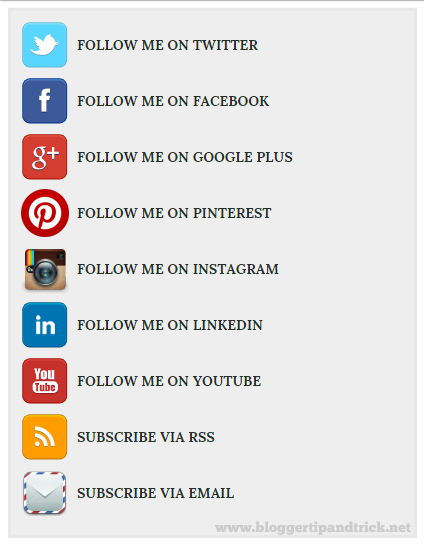
Final result will look like this:
Social Subscribe Box to Blogger

How to Link Blogger Header to Another Site

How to Link Blogger Header to Another Site


As you can see in most times, your template header title links to your blogger blog that template has been applied. This tutorial explains how to link your blogger site header to another site you like.
Follow the steps given below to link blogger header to other site.
1.Login to your Blogger account and go to "Edit HTML" of your blog.
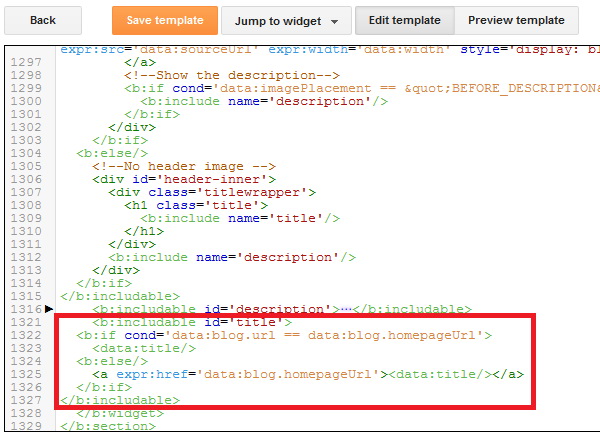
2.Scroll down to where you see this (or use Ctrl+F to find that code):
<b:includable id='title'>
<b:if cond='data:blog.url == data:blog.homepageUrl'>
<data:title/>
<b:else/>
<a expr:href='data:blog.homepageUrl'><data:title/></a>
</b:if>
</b:includable>
Blogger Edit HTML
3.Replace above code with below code:
<b:includable id='title'>
<a href='LINK_OF_YOUR_ANOTHER_SITE'><data:title/></a>
</b:includable>
NOTE : Replace 'LINK_OF_YOUR_ANOTHER_SITE' with actual URL of your another site and save your template.

How To Embed a Web Page on Another Site

How To Embed a Web Page on Another Site


1.Login to your dashboard--> layout- ->Page Elements
2.Click on 'Add a Gadget' on the sidebar.
3.Select 'HTML/Javascript' and add the code given below and click save.
<iframe height="400" width="90%" frameBorder="0" src="URL OF WEB PAGE">your browser does not support IFRAMEs</iframe>


Note :
 Remember to replace URL OF WEB PAGE,with the url you want to embed into your site.You can change height,width.
Look at the example below.
<iframe height="400" width="90%" frameBorder="0" src="http://google.com">your browser does not support IFRAMEs</iframe>
Now you are done.

How To Add Spider View Checker to blogger

How To Add Spider View Checker to blogger


This gadget will show to your visitors how Spider bots view their websites. This includes most major search bots including Google, MSN and Yahoo!
1.Login to your dashboard--> layout- ->Page Elements
2.Click on 'Add a Gadget' on the sidebar.
3.Select 'HTML/Javascript' and add the code given below and click save.
<script src="http://www.mypagerank.net/services/spiderview/servicespiderview_js.php"></script>
Now you are done.It will look like this.

How To Open PageList Widget Links in New Window

How To Open PageList Widget Links in New Window


This quick tutorial explains how to open each link of your Blogger PageList widget in new window or new tab.
1. First Login to your Blogger account and go to "Template"--> "Edit HTML" of your blog.
2. Now find your PageList widget code. (Note : You may also can find it by searching <b:widget id='PageList)
Your PageList widget code will more similar to this. But widget id (PageList1) can be different :
<b:widget id='PageList1' locked='false' title='Pages' type='PageList'>
<b:includable id='main'>
<b:if cond='data:title'><h2><data:title/></h2></b:if>
<div class='widget-content'>
<b:if cond='data:mobile'>
<select expr:id='data:widget.instanceId + &quot;_select&quot;'>
<b:loop values='data:links' var='link'>
<b:if cond='data:link.isCurrentPage'>
<option expr:value='data:link.href' selected='selected'><data:link.title/></option>
<b:else/>
<option expr:value='data:link.href'><data:link.title/></option>
</b:if>
</b:loop>
</select>
<span class='pagelist-arrow'>&amp;#9660;</span>

<b:else/>
<ul>
<b:loop values='data:links' var='link'>
<b:if cond='data:link.isCurrentPage'>
<li class='selected'><a expr:href='data:link.href'><data:link.title/></a></li>
<b:else/>
<li><a expr:href='data:link.href'><data:link.title/></a></li>
</b:if>
</b:loop>
</ul>
</b:if>
<b:include name='quickedit'/>
</div>
</b:includable>
</b:widget>
3. Now put blue colored code ( target='_blank' ) as the example below into your Link list code.
<b:widget id='PageList1' locked='false' title='Pages' type='PageList'>
<b:includable id='main'>
<b:if cond='data:title'><h2><data:title/></h2></b:if>
<div class='widget-content'>
<b:if cond='data:mobile'>
<select expr:id='data:widget.instanceId + &quot;_select&quot;'>
<b:loop values='data:links' var='link'>
<b:if cond='data:link.isCurrentPage'>
<option expr:value='data:link.href' selected='selected'><data:link.title/></option>
<b:else/>
<option expr:value='data:link.href'><data:link.title/></option>
</b:if>
</b:loop>
</select>
<span class='pagelist-arrow'>&amp;#9660;</span>

<b:else/>
<ul>
<b:loop values='data:links' var='link'>
<b:if cond='data:link.isCurrentPage'>
<li class='selected'><a expr:href='data:link.href' target='_blank'><data:link.title/></a></li>
<b:else/>
<li><a expr:href='data:link.href' target='_blank'><data:link.title/></a></li>
</b:if>
</b:loop>
</ul>
</b:if>
<b:include name='quickedit'/>
</div>
</b:includable>
</b:widget>
Important : You must include a space before target='_blank' as the example above.
Now save your template and you are done.

How To Hide Blogger Blogs from Search Engines

How To Hide Blogger Blogs from Search Engines


Although displaying in your blog in search engines is important to bring more visitors, we can hide Blogger blogs from search engines and remove our blog from blogger listings very easily through Blogger.com settings. This is useful if you are running a personal blog and do not want to become it "Private" through Blogger settings.
First Go to "Settings" › "Basic" of your blog. Click "Edit" link of your privacy settings.
Blogger Privacy Settings Edit
There are two settings under privacy settings with "Yes" and "No" options.
1. Add your blog to our listings?
A Listed blog may be linked to from Blogger.com, such as the Blogger home page and Next Blog. If you select "No" your blog will not appear in these places, but it will still be available on the Internet. This blog will still be displayed on your profile unless you hide it.
2. Let search engines find your blog?
If you select "Yes" blogger will include your blog in Google Blog Search and ping Weblogs.com. If you select "No", everyone can still view your blog but search engines will be instructed not to crawl it. If there are links to your blog from other websites, search engines may still suggest your blog in response to queries.
Check "No" radio buttons for both above settings and click "Save changes".
You have successfully hide your blog from search engines in blogger listings.

How To Submit blogger sitemap to yahoo to index your web pages

How To Submit blogger sitemap to yahoo to index your web pages


Submitting your site to yahoo is easy and give your web pages more exposure.
All you need is a YAHOO ACCOUNT(ID).However,you don't need an yahoo ID to know the information like how many pages are indexed,etc.But,if your blog is a new one or no pages in your blog are indexed(type your blog url in yahoo search and see to check whether your web pages are indexed or not), then you want Yahoo id to submit your sites,feeds,etc.
Let't see how to make yahoo index your webpages by submitting your blog sitemap.
2. Click on the 'Sign in' link which is at the top of the page (If you don't have a Yahoo id, you can get one here) to sign into your account.
3. Type your blog url in the box provided and click on the 'Add My Site'
4. After adding your site,you need to Authenticate(Verify your ownership).
Now click on the site name which submitted you and then click 'Authenticate' in the next page.
There are two ways to verify your ownership.One is to upload a file to the root directory of your site which can't be possible in blogger.
Another one is to 'adding a metatag' which is possible and the only way to verify ownership for bloggers. First,copy the metatag..
Next,sign in to your blogger account>Edit html and paste the metatag below the head tag and SAVE THE CHANGES.
When you return to Yahoo! Site Explorer, click the button that says “Ready to Authenticate”
Next,you will get a message saying that 'Your site is pending authentication'
Note: Don't remove the metatag,they will revalidate your ownership by checking your ownership regularly.
5. Next,go back to the 'Site explorer home', and check the box next to your blog url and click on the Manage button.
6. Type rss.xml or atom.xml in the box provided.It helps yahoo to discover more of your site content via your rss or atom feeds and to index your blog pages quickly whenever your blog is updated.Next,click on the add feed button.
That's it.Now,you have sucessfully submitted your blog sitemap to yahoo.Check your account after a couple of days and you will see your blog indexed in yahoo search engine.
Meanwhile,if you didn't submitted your blog sitemap to google,please read this about How to Submit your blog sitemap to Google

How To Redirect Blogger URL To Another URL

How To Redirect Blogger URL To Another URL


1.Log in to your dashboard--> layout- -> Edit HTML
2.Scroll down to where you see <head> tag.
3.Add below code into your template just after the <head> tag.
<meta http-equiv="refresh" content="0;url=http://yournewurl.com"/>
It should Look Like This.
<head>

<meta http-equiv="refresh" content="0;url=http://yournewurl.com"/>
4.Replace http://yournewurl.com with the URL you want to redirect your old blog.
5.Click on Save Templates and you are done.
Now your blog traffic will be redirected to your new address.